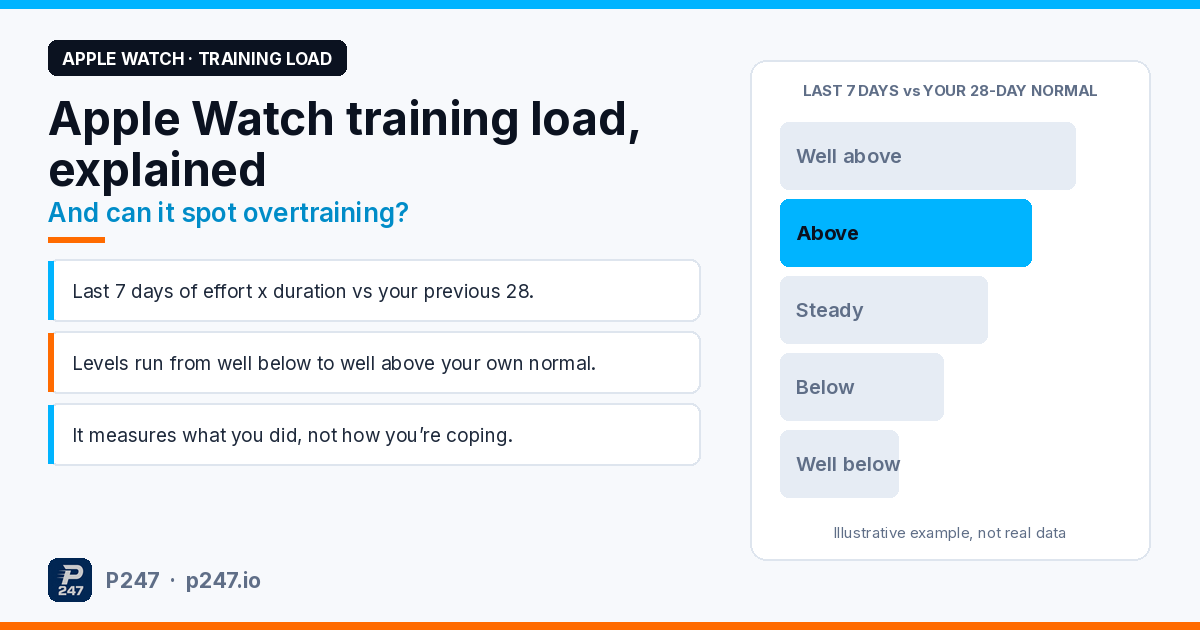
Apple Watch training load compares the effort and duration of your workouts over the last 7 days with the previous 28 days, then puts the result on a five-step scale: well below, below, steady, above or well above. It tells you whether your training is ramping up, holding or easing off compared with your own recent normal.
What it can’t do on its own is tell you you’re overtraining. It measures how much work you did, not how your body is coping with it. “Well above” can be exactly right in a build week, and “steady” can still be too much if you’re sleeping badly and getting sick.
That’s the short version. Below is how the score is put together, according to Apple, what each level is useful for, and where I think athletes misread it. Where I’m giving my own opinion rather than Apple’s documentation, I’ll say so.
How Apple Watch works out training load
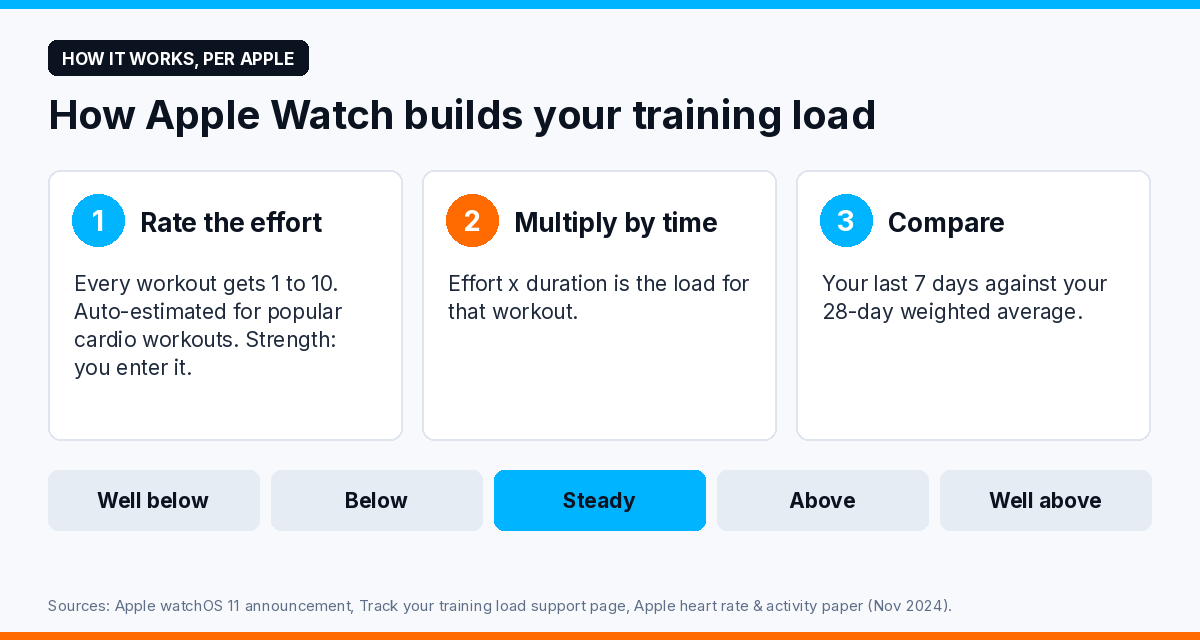
Apple introduced training load in watchOS 11. From Apple’s watchOS 11 announcement and its Track your training load support page:
- Every workout gets an effort rating from 1 to 10. You set it when you end the workout, or change it later in the Fitness app on iPhone (Sessions, pick the workout, Effort).
- Popular cardio workouts get an automatic estimate. Apple says it uses your heart rate, VO2 max and personal details like age, height and weight, plus workout data such as GPS and elevation. You can adjust the estimate if the session felt harder or easier than the watch thinks.
- Strength training doesn’t get an automatic estimate. You can still enter one yourself at the end of the workout.
- Effort multiplied by duration is the load for that workout. Apple’s heart rate, calorimetry and activity paper says this directly.
- Your 28-day training load is a weighted average of effort and duration across that period.
- Your last 7 days are compared against it and classified from well below to well above.
You’ll find it in the Activity app on the watch, where you can also filter it by workout type, and in the Fitness app on iPhone, where Apple says it adds detail on the possible impact of continuing at that level, such as changes in fitness or risk of injury.
If you’ve used TrainingPeaks, this will feel familiar. It’s the same basic idea as comparing short-term load with longer-term load, which I wrote about in why TrainingPeaks users still overtrain. Apple’s version is simpler and only uses your own last month as the benchmark.
One thing I couldn’t find anywhere in Apple’s documentation is where the boundaries between the five levels sit. So I wouldn’t read anything into how close you are to the next level.
What each level actually tells you
Because the benchmark is your own last 28 days, every level is relative. Here’s how I read them. This is my interpretation, not Apple’s:
- Well below. You’ve done much less than your recent normal. Fine in a taper, a planned rest week or while you’re sick. A problem only if it wasn’t the plan.
- Below. Easing off. Normal in a recovery week or the week after a race.
- Steady. Similar to your recent normal. Good for maintaining. If you’re trying to build, weeks and weeks of steady may mean you’re not progressing the load at all.
- Above. Ramping up. This is what a build week should look like.
- Well above. A big jump on your recent normal. Sometimes that’s planned, such as a training camp or a HYROX block. Sometimes it’s a sign you’ve done too much too soon, especially after time off. This is the level worth a second look.
The catch with a relative score is that the benchmark moves. After two weeks off with a cold, a perfectly ordinary week of training can show as well above, because your last 28 days are now low. And if you’ve been gradually overdoing it for a month, that heavier training becomes the new normal and the score can settle back to steady.
Why it can’t spot overtraining on its own
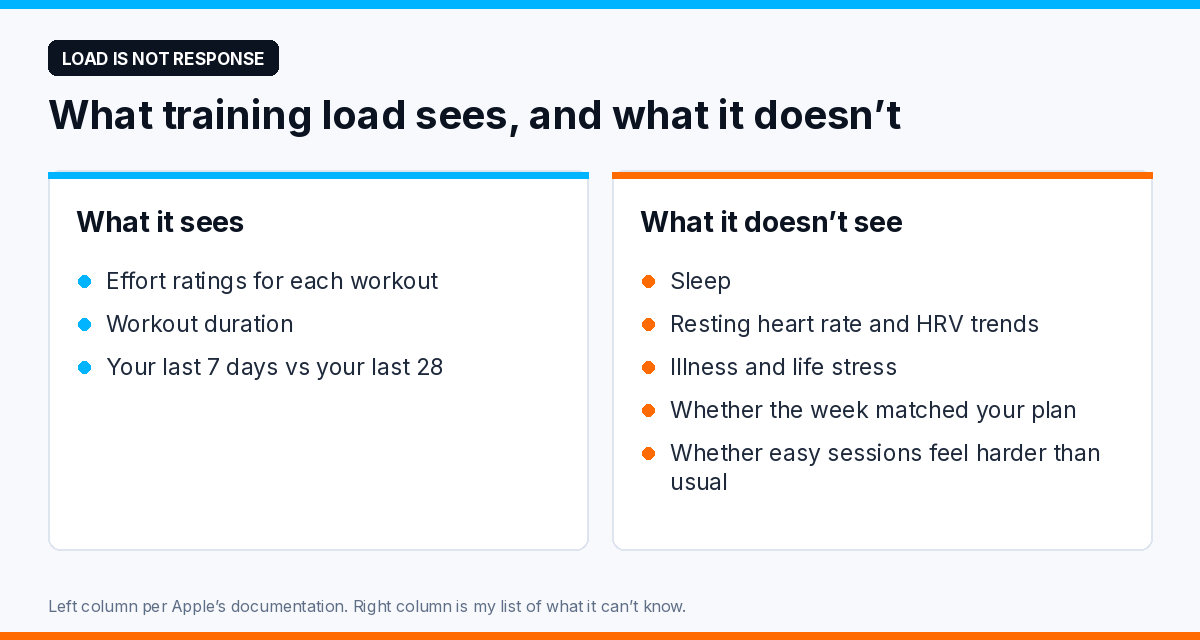
Overtraining, or more often for amateur athletes, under-recovering for weeks at a time, is about how your body responds to load. Training load only measures the load.
Two athletes can have identical “above” weeks. One is sleeping well, has a normal resting heart rate and is hitting their paces. The other is sleeping five hours, has a resting heart rate creeping up and feels flat on easy runs. The training load screen looks the same for both.
That’s why I’d never use it as the only signal. For a better picture, put it beside:
- Overnight vitals. Apple shows them from the training load screen for a reason. A resting heart rate or HRV trend that has drifted away from your normal over several days matters more than one night. I covered what HRV can and can’t tell you in HRV and overtraining.
- Sleep. Consistently short or broken sleep during a high-load week changes the answer.
- How the sessions are going. Higher heart rate at a familiar pace, or easy sessions that feel hard, are worth more than any score.
- The plan. “Well above” in a planned overload week is the plan working. The same reading in race week is a mistake. I made this argument in more detail in Apple Watch training load still needs an athlete who knows the plan.
The effort rating problem for hybrid athletes
This is the part I think most people get wrong, and it matters most for HYROX and hybrid athletes.
Training load is only as good as the effort ratings going into it. Cardio sessions get an automatic estimate. Strength work doesn’t. If you do heavy sled pushes, wall balls and lunges and never rate them, your training load is likely to understate your week. Apple doesn’t spell out exactly how an unrated workout is treated, so my advice is simple: rate every session, especially strength and HYROX-style work.
The automatic estimates have limits too. They lean on heart rate and your VO2 max, so a session that’s hard on your legs but doesn’t push your heart rate up much, such as heavy lower-body strength or a hilly walk with a pack, may come out lower than it felt. Apple lets you adjust the rating for exactly this reason. Use it.
And be consistent. A 7 means something different if you rate generously one week and harshly the next.
How I’d use it
My own approach, for what it’s worth:
- Rate every workout honestly, and adjust the automatic estimate when it’s clearly off.
- Check the level once or twice a week, not after every session.
- Compare it with what you planned. Above in a build week is fine. Above in a deload week isn’t.
- When it says well above, look at the response. Check sleep, resting heart rate and HRV trends and how your easy sessions feel before deciding to back off.
- Don’t chase steady. A taper is supposed to read below.
Where P247 fits
P247 reads what your watch puts into Apple Health, and optionally Strava, and puts your training next to your sleep, resting heart rate and HRV in one daily brief and recovery score. The point is the same one I’ve made all through this post: the load number means more when you can see how your body is responding to it.
If you want your training, sleep and recovery in one place, P247 is on the App Store.
P247 is available now on the App Store. Connect Apple Health and get your first weekly performance report free.